Introduction
EML files are single email messages, and they contain information like sender, recipients, subject, date, message body, and attachments. If you want to keep emails for long-term reference, sharing, printing, or offline access, EML to PDF conversion can make the material easier to handle.
But a successful conversion from EML to PDF is not just a matter of converting one file format into another. The resulting PDF archive may not be as useful if attachments are missing, email formatting is improper, or content is unintelligible or message information is incomplete.
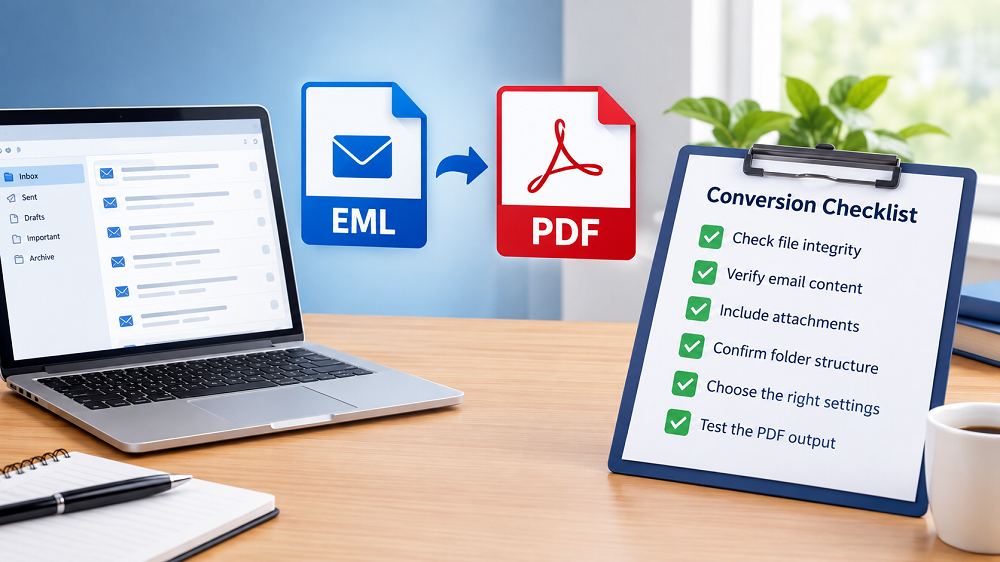
Here’s a checklist that you can use to validate the source data, conversion requirements, and final PDF output before converting EML files:
1. Check EML Files Before Converting Begin by examining the source email files. This allows you to catch problems before they affect the PDF archive.
☐ Ensure you have all the EML files: Ensure essential emails are not corrupted or damaged and open properly.
☐ Count the emails: If you’re converting a large collection, take note of the approximate number of EML files.
☐ Review folder structure: Check if messages are saved in different folders like Inbox, Sent, Drafts, or custom folders.
☐ Select vital messages: Highlight emails that need to be preserved without altering the text or layout.
☐ Check attachments: Make sure that crucial documents, photographs, or other assets are attached to the original emails.
☐ Make a backup: Make a backup copy of the original EML files before you start the conversion.
A good source-data check decreases the risk of missing emails or attachments after the conversion is done.
2. Check the Email Information to Be Preserved There's more to an email than meets the eye. Before you begin building PDF email archives, evaluate what information you want to keep available.
Look for:
☐ Sender and recipient addresses
☐ CC and BCC information when available
☐ Email subject
☐ Date sent and date received
☐ Email body text
☐ Links
☐ Images in text
☐ Attachments
☐ Original formatting
☐ Special characters and symbols
In case such details matter for future reference, make sure the chosen EML to PDF converter can retain them properly.
3. Identify the Structure of the PDF Files A large collection of converted emails can be hard to handle if the result is not organized properly.
☐ Decide before you start:
☐ Does each EML email need to be a different PDF?
☐ Would you like to convert the emails in a folder together?
☐ Should important messages have a separate PDF file?
☐ Do you want to keep the original email names as the names of the PDF files? ☐ Do you want a uniform naming scheme for files after conversion?
Planning the format of your PDF email collection in advance makes it easier to search, identify, and distribute.
4. Verify the Conversion Method The conversion process should fit the volume of emails and the degree of preservation sought.
Manual Method For some EML files, the user can open each message in a compatible email application and choose the application’s Print to PDF option. This can work for infrequent conversions but can become time-consuming when dealing with hundreds or thousands of emails.
Manual conversion can also require repeating the method for each message, and it can be harder to get consistent results across a large set of emails.
Professional Conversion Method
For larger collections, a dedicated EML to PDF converter can be a more viable solution. When users want to handle many EML files and make PDF copies of email data without manually printing over and over again, Softaken EML to PDF Converter can be taken into consideration.
Before you go for the professional program, check whether it supports your required EML files, attachments, folder selection, and desired PDF output.
5. Verify Key Conversion Settings
Before you start converting, make sure to check the available options.
☐ Select the appropriate EML files or directories.
☐ Verify the target location for PDF files.
☐ See whether any naming or folder options are available.
☐ Verify whether attachments can be added or saved.
☐ Check the options for the possible PDF output.
☐ Make sure you are working on the emails you selected, not other files.
These checks are especially beneficial in case of several email folders or a vast collection of EML files.
6. Check Converted PDF Files When the conversion is finished, don’t think the process is over. Open certain PDF files and compare them with the original EML messages.
Verify This:
☐ Email text is complete.
☐ Sender and recipient information is present.
☐ Dates and subject lines are accurate.
☐ References to attachments or the attachments themselves are not altered.
☐ The images can still be read.
☐ Tables and formatting are preserved.
☐ Special characters render correctly.
☐ There are no major sections left out.
☐ PDF files will open without problems.
For large conversions, examining a representative sample from multiple directories can help detect errors without having to check every file individually.
7. Review the Final PDF Archive
Check the converted files and do a final archive check.
☐ Confirm that the expected number of PDF files are generated.
☐ Check output folders and file names.
☐ Open PDFs from different spots at random.
☐ Ensure that essential emails are easy to detect.
☐ Ensure the PDFs are available in the storage place you want.
☐ Save the original EML files for backup if necessary.
A final check verifies that the converted email archive is really suitable for future reference, sharing, printing, or record keeping.
Conclusion
EML to PDF Converter can help you save, share, print, and read email messages outside an email client. However, to get a reliable result, you need to verify the source files, required email information, organization, conversion technique, and final PDF output.
This EML to PDF conversion checklist is an easy way to check each step of the process. These tests can help you generate a better-organized and reliable PDF email archive, whether you are converting a few messages manually or handling a large collection with professional email conversion tools.